How to Use 4D Skins on a Minecraft Server?
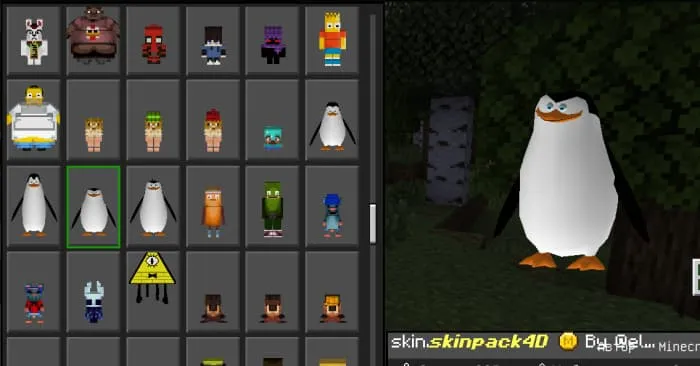
Want to stand out in Minecraft PE (Bedrock)? 3D and 4D skins give your character a bold new look with horns, wings, animations, and custom shapes. This guide will show you how to install them on Windows, iOS, and Android, and how to use them in-game.
Benefits of 4D Skins
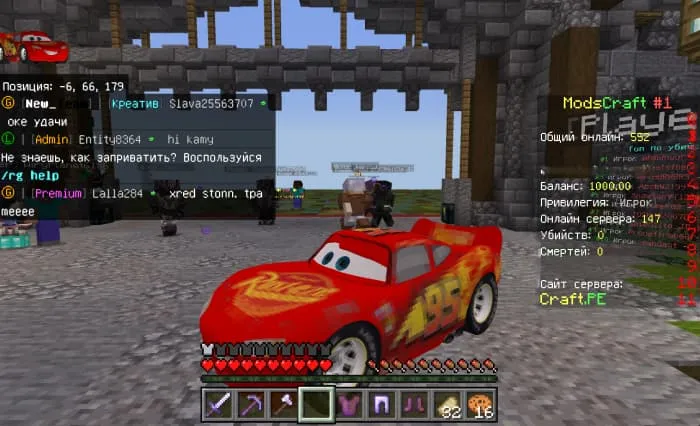
4D skins are more than just textures — they add extra dimensions, animations, and cool designs like horns and wings. While official Bedrock servers might not support them, they look great in local worlds and on compatible servers.
Installing on Windows 10/11
- Download the 4D skin archive (e.g.,
skinpack-by-el_arepitas.zip). - Press Win + R and enter:
%localappdata%\Packages\Microsoft.MinecraftUWP_8wekyb3d8bbwe\LocalState\premium_cache\skin_packs - Clear the skin_packs folder.
- Unzip and copy the new skin files into that folder.
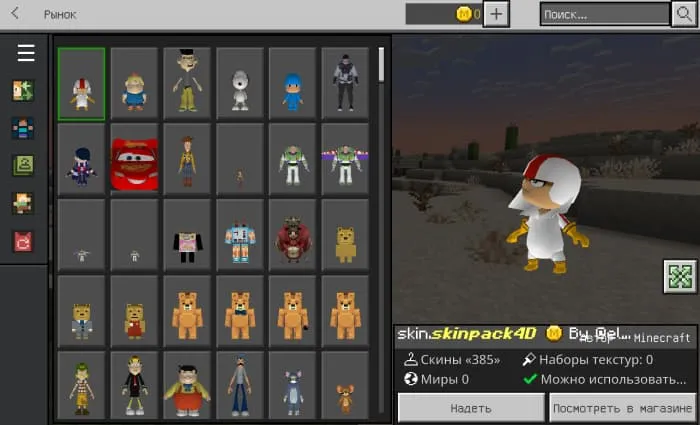
- Open Minecraft PE, go to “Marketplace → Skins,” find the “First Anniversary” skin pack, and apply the 3D or 4D skin you want.
Download skinpack-by-el_arepitas.zip
Installing on iOS
- Download and unzip the 4D skin pack.
- Using a file manager, navigate to:
.../Minecraft/premium_cache/skin_packs - Move the unzipped files into this folder.
- Launch Minecraft PE, go to “Marketplace → Skins → First Anniversary,” and select your 4D skin.
Download skinpack-by-el_arepitas.zip
Installing on Android
- Download Minecraft Bedrock with pre-installed 3D/4D skins.
- Install and open the app.
- In the Dressing Room, choose and activate a 3D or 4D skin.
4D Skins on Servers
You can use custom skins on servers, but keep in mind:
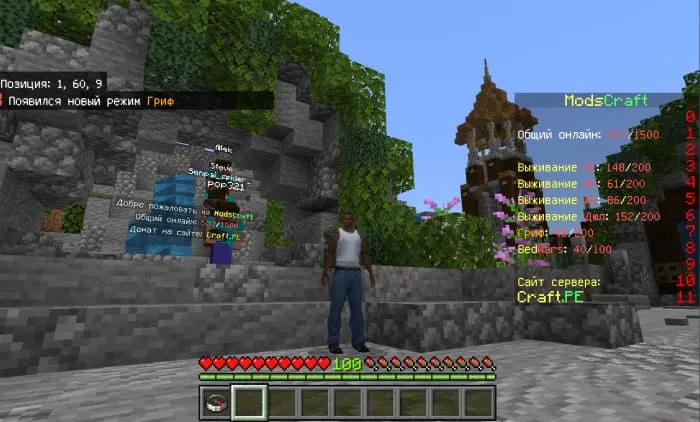
- Some servers have protections — join with a default skin first, then switch.
- On some servers, others might not see your 4D skin due to restrictions.
- Using 4D skins may result in a ban on certain servers.
Tips and Recommendations
- Back up the
skin_packsfolder before installing anything. - Make sure your version of Minecraft PE supports custom models (some versions 1.16+ may not).
- If you run into issues, re-download the archive from a trusted source and try again.
Now you know how to install and use 4D skins across all platforms. Enjoy your game and stand out with epic new looks in Minecraft!
27
comments
Comments in a new tab