Minecraft PE: How to Create Your Own Item
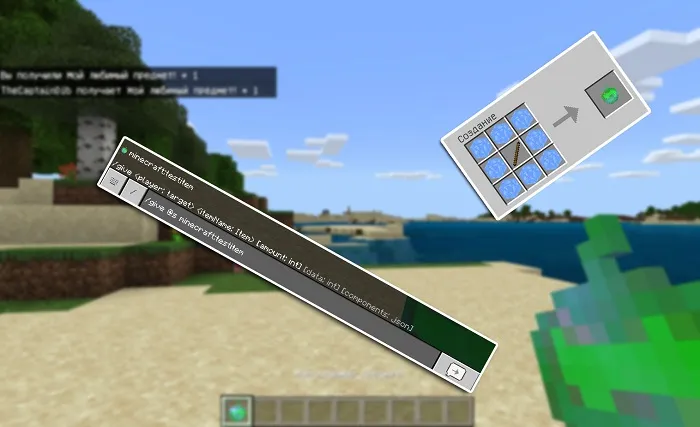
Starting with Minecraft Bedrock Edition Beta 1.12.0.2, the game introduced a new feature that allows you to create your own items using resource packs and behavior packs. In this guide, we'll briefly explain this feature.
At the end of the guide, we left a link to download an archive with a ready-made resource and behavior pack. Over time, we may update this guide by adding or changing information.
Step 1: Create a Resource Pack.
Using resources, we first need to register our item in the game and optionally assign it a custom icon.
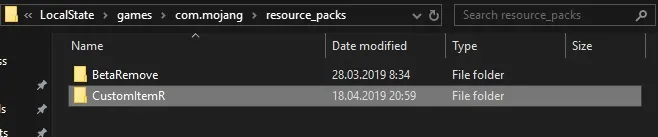
To create a resource pack, go to the folder:
- Windows 10: C:\Users\YourUsername\AppData\Local\Packages\
Microsoft.MinecraftUWP_8wekyb3d8bbwe\LocalState\games\
com.mojang\resource_packs - Android: \games\com.mojang\resource_packs
In this folder, create a new folder for your new pack. You can name it anything, but try to use meaningful names to avoid confusion later.
Go into the created folder and create a file named manifest.json.

Open this file with a text editor and paste the following code:

We won't go into all the settings details, but the most important part here is the lines "uuid": "UNIQUE ID".
These values are mandatory; otherwise, the game system won't recognize the packs.
Getting them is easy. Go to the website https://www.uuidgenerator.net/version4. Enter the number of identifiers in the "How Many?" field and click "Generate".
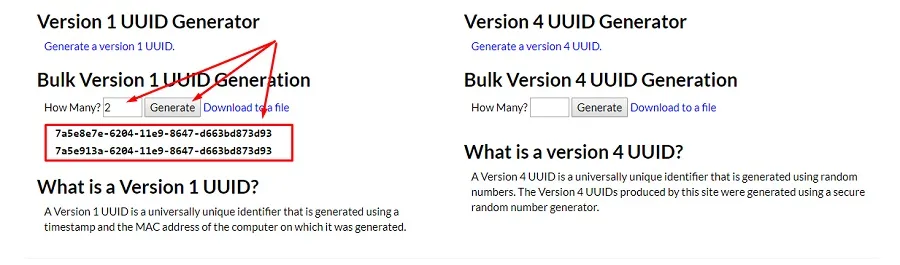
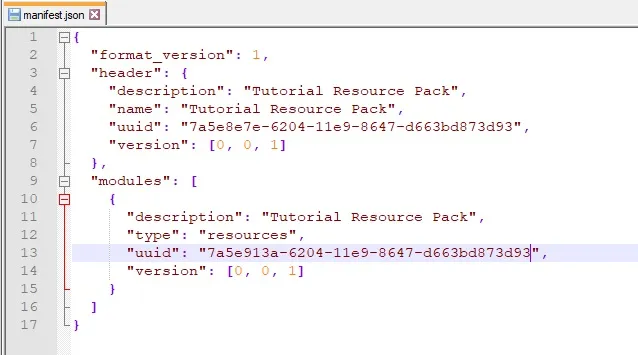
Insert the obtained values instead of "UNIQUE ID" (they must not repeat!) in the manifest.json file. The result should look something like this:
In the pack folder, create another folder named items, where your items will reside.

Go into the created folder and create a file named itemName.json.
The result should look something like this:

Open the created file and fill it with the following code:
Don't forget to change the line "minecraft:itemName" to the name you gave the file.
Description of variables:
- identifier - item identifier
- category - item category
- Can take the following values: Equipment, Nature, Items
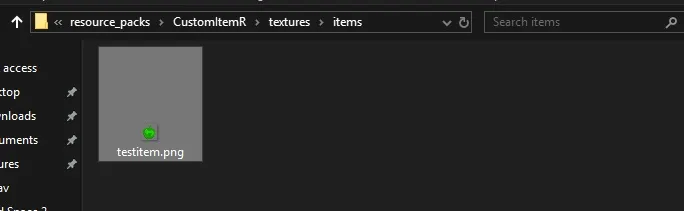
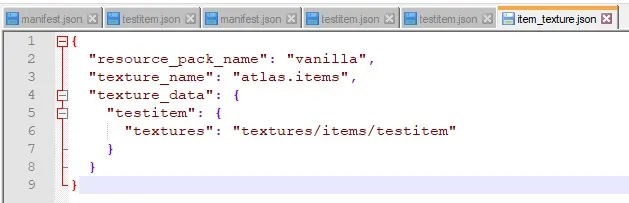
- minecraft:icon - item icon. You can read about creating your own icon at the end of the guide.
- minecraft:use_animation - use animation:
- eat - eating
- camera - camera
- crossbow - crossbow
- bow - bow
- minecraft:render_offsets - item appearance in hand:
- seeds - seeds
- flesh - flesh
- fishes - fish
- melon - melon
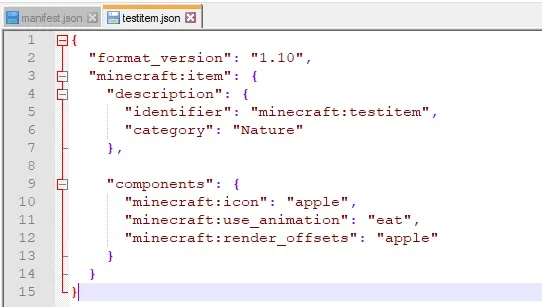
You should have something like this:
Step 2: Create a Behavior Pack.
Great! We created our item, but to make it fully functional, we need to give it "logic" using a behavior pack.
Now, in the folder \games\com.mojang\behavior_packs\, create a new folder for the behavior pack.
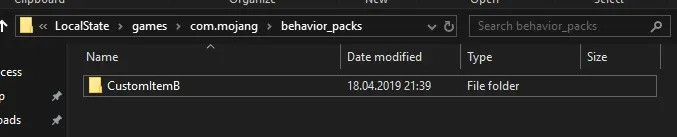
In the created folder, again create a manifest.json file and an items folder.

Open the newly created manifest.json file and paste the following:
Note that again you need to specify "UNIQUE ID", which you must generate again on the same site - https://www.uuidgenerator.net/version4.
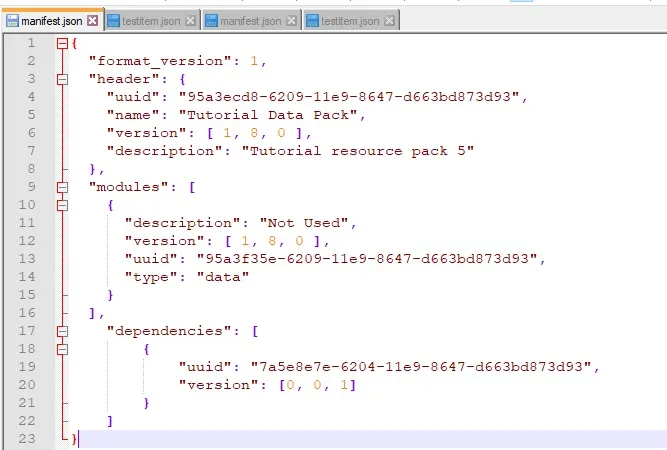
In the "dependencies" section, you need to specify the "uuid" of our resource pack. This way, you can activate only the behavior pack, and the resource pack will be loaded automatically.
The result should look like this:
Now go to the items folder and create a file named itemName.json again.
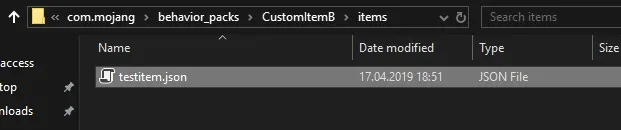
In the created file, paste the following using a text editor:
Description of variables and components:
- identifier - item identifier
- minecraft:hand_equipped - can be held in either hand (true/false)
- minecraft:stacked_by_data - can stack (true/false)
- minecraft:use_duration - use duration (integer)
- minecraft:foil - can be used as fuel (true/false)
- minecraft:food
- nutrition - saturation (number)
- saturation_modifier
- can_always_eat - can always eat
- effects - effects received (array)
- name - effect name
- chance - chance of receiving (1.0 = 100%)
- duration - duration (in seconds)
- amplifier - effect level
- minecraft:seed - allows planting on farmland
- crop_result - block to be placed on farmland
- minecraft:block - purpose of this component is unclear
- minecraft:camera - currently not working
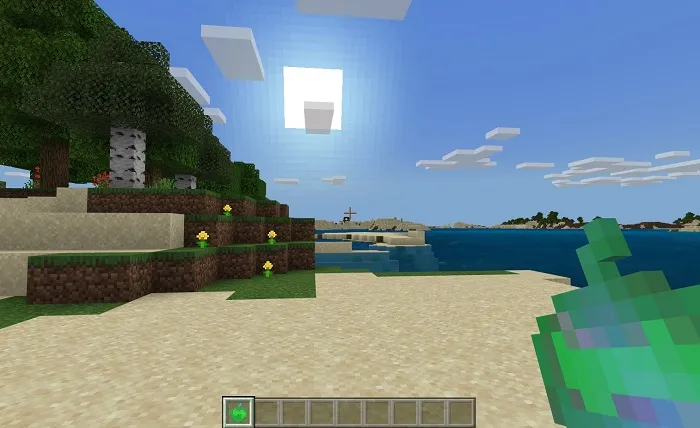
Now we can launch the game, activate the packs, and test the functionality of our created item!
You can get the item with the command /give @s itemIdentifier (below there is information about creating a recipe for the item).

And voila!
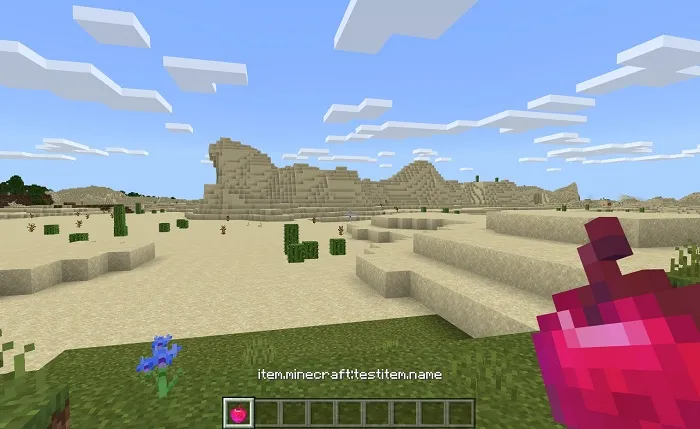
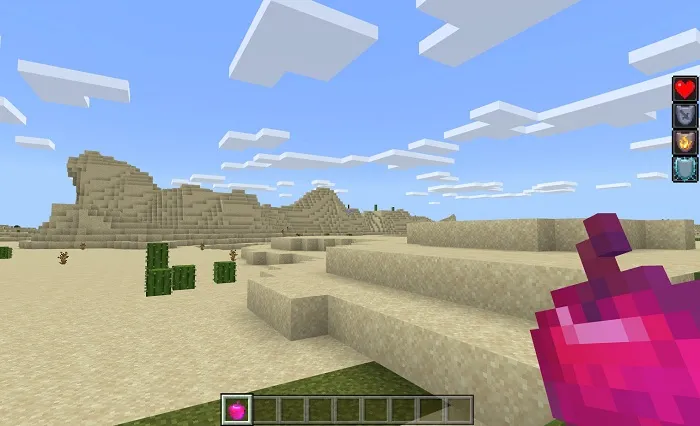
And since we assigned it the minecraft:food component and listed the effects, now you can eat the item and receive effects!
ModsCraft
Immerse yourself in a unique adventure with classic survival, anarchy, a clan system, and constant events!…