Mod: Blueprint Editor
Blueprint Editor is a powerful tool for map creators that allows you to create complex scenarios, cutscenes, and boss mechanics without writing huge chains of command blocks. All control is done through a convenient visual interface directly in the game.
Developer: Bird Team
- YouTube: https://www.youtube.com/@villagerproTopgaming/videos
- Telegram channel: https://t.me/villagerproclan
🛠 Installation and Setup
- Before you begin, make sure your world is set up correctly. This is critical for the mod to work.
- Download the .mcaddon file and open it (Minecraft will import it automatically).
- Go to your world settings -> Behavior Packs and activate Blueprint Editor.
- Go to the Experiments tab.
- ❗ REQUIRED: Enable Beta APIs.
- Start the world.
📖 Getting Started
To open the editor, you need a special item — Blueprint Editor Book.
- How to get it: Give it to yourself with the command /give @s bp:book or find it in the creative inventory.
- How to open: Hold the book in your hand and press Right Click (right mouse button) or Long Press (on mobile).
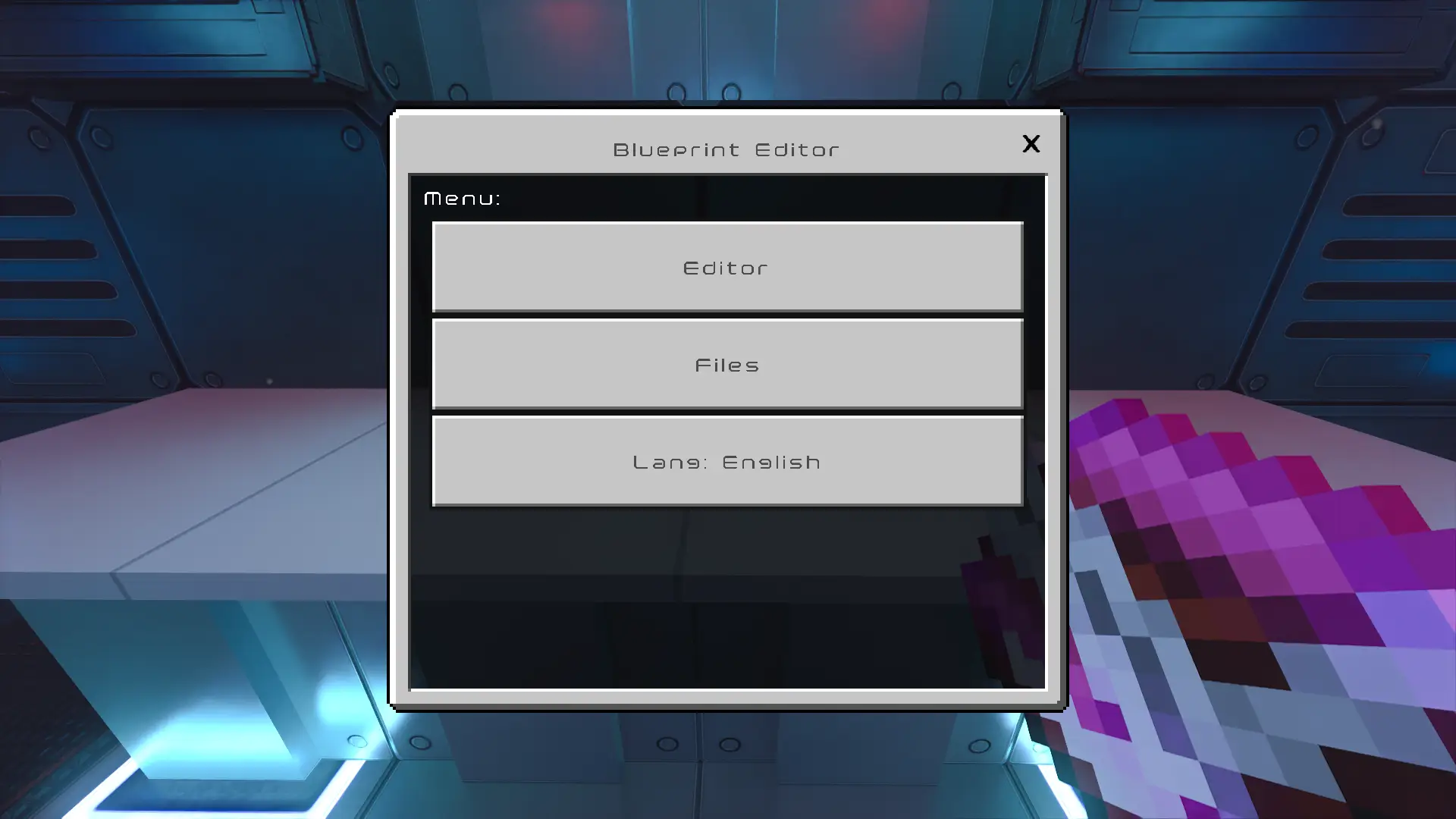
Main Menu
When opening the book, you will see three buttons:
- Editor: Creating new scenarios.
- Files: Loading and deleting saved scenarios.
- Language: Switching between Russian and English.
⛓ How It Works: Node System
A scenario in Blueprint Editor is a chain of events that execute in order from top to bottom. Each event is called a Node.
Example of a simple chain:
- Title: Show text "Boss has appeared!".
- Timer: Wait 3 seconds.
- Summon: Spawn a boss.
- Camera: Shake the camera.
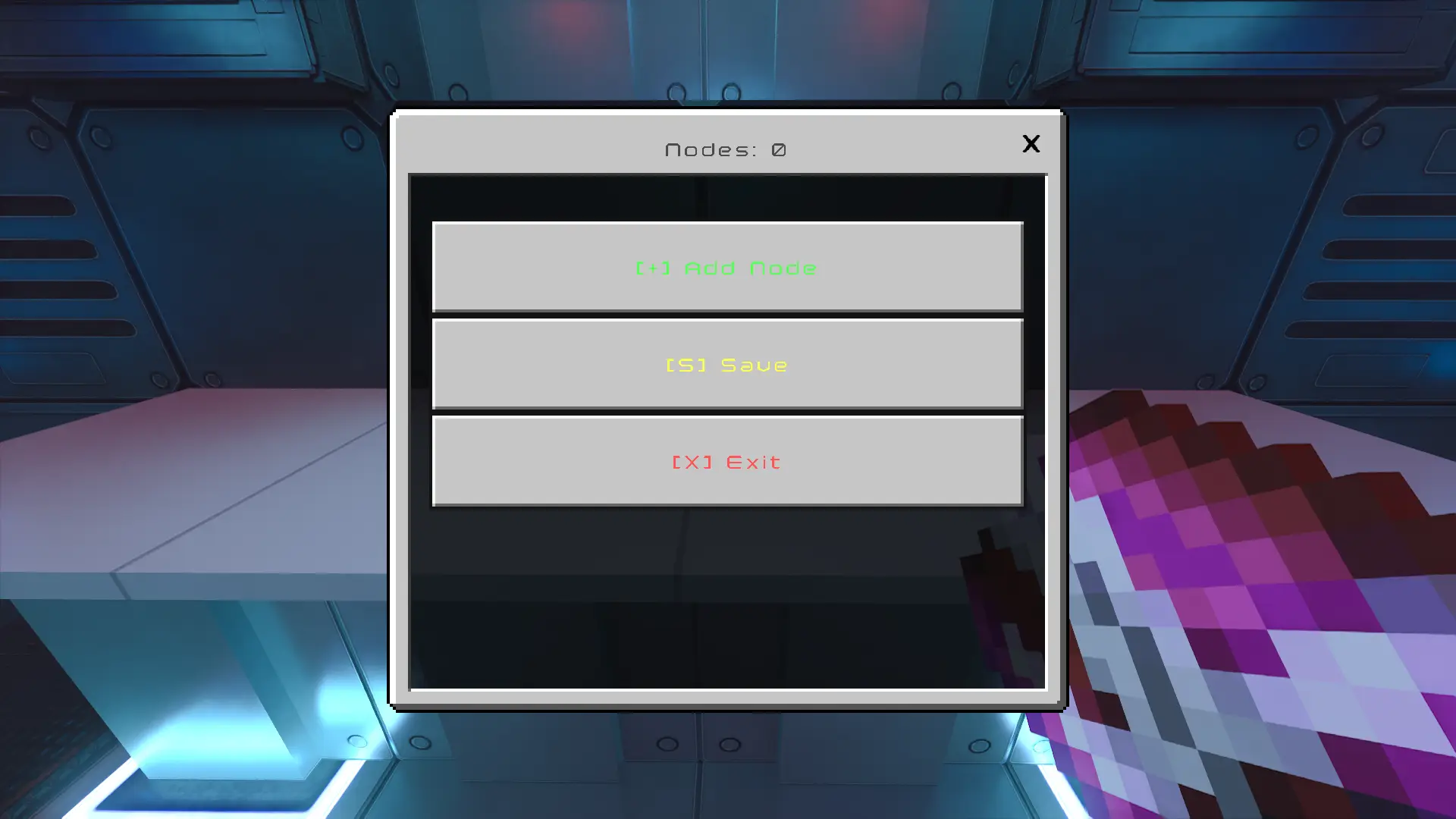
Editor Controls:
- [+] Add Node: Opens a list of all available commands.
- Clicking on a Node: Opens the management menu for that specific node (Edit, Move Up, Move Down, Delete).
- [S] Save: Saves your chain under a unique ID. (Important: save all your changes under the ID you were editing nodes in, so your changes won't be lost).
🧠 Node Settings (Advanced)
Each node has additional settings at the bottom:
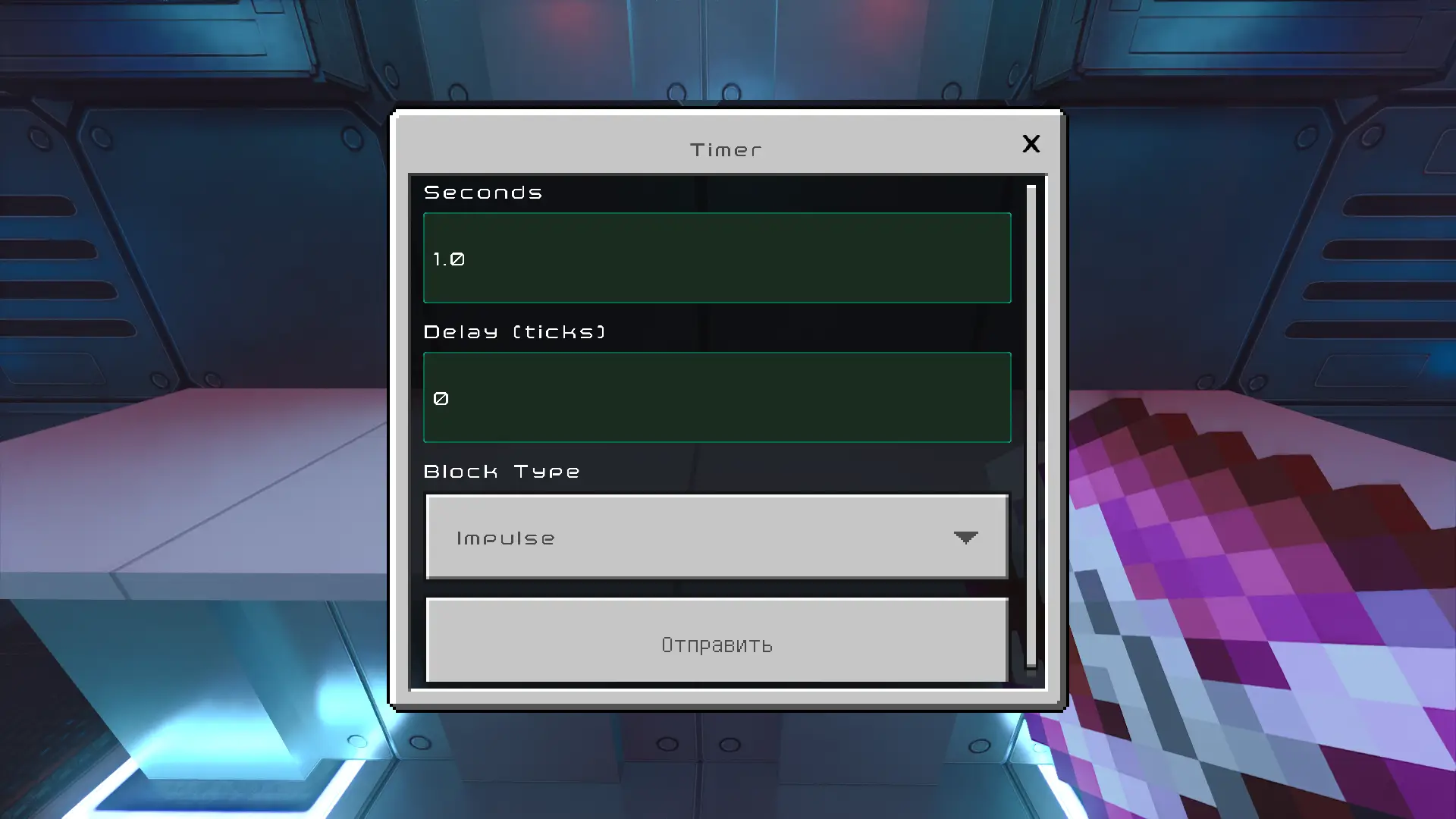
- Delay: Time (in ticks) before executing this specific node.
- Block Type: Impulse: Executes the action and moves to the next node (standard mode).
- Chain: Same as impulse (for compatibility).
- Cycle: ⚠ The node will execute itself indefinitely. To exit the loop, use the script stop command. Always set a delay for cycles to avoid lag!
👹 Summon (Mob Summoning)
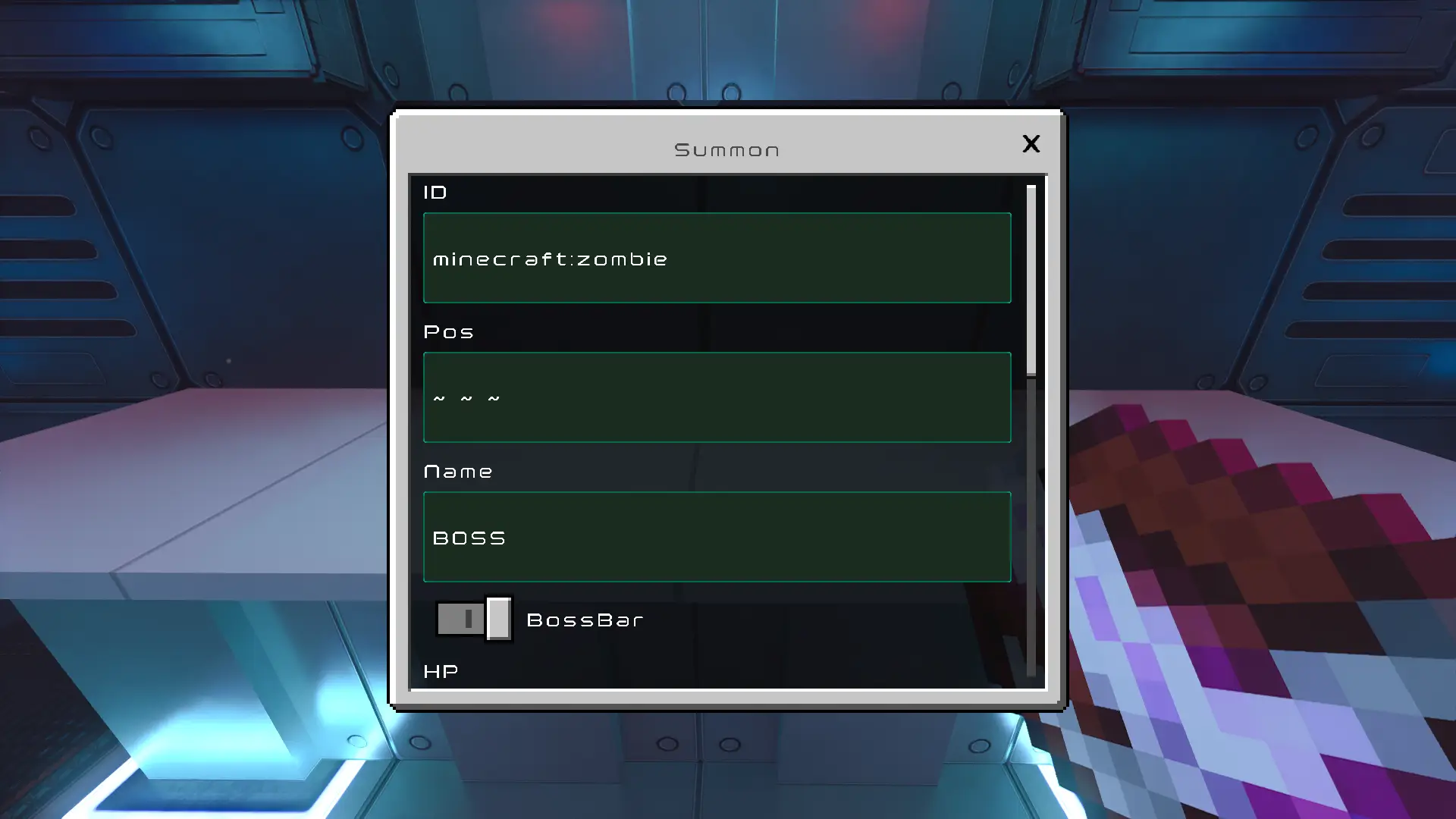
This node is much more powerful than the regular /summon command. It allows you to create a customized mob.
- Mob ID: For example zombie, skeleton. (We strongly recommend using the minecraft: prefix, for example minecraft:zombie. If the mob is from mods — specify its full ID).
- Coordinates: ⚠ Important: Use exact coordinates (for example 100 65 100).
- Name: Will be displayed above the head.
- BossBar: If enabled, all players will see a health bar.
- Health (HP) and Speed: The script will automatically change the mob's characteristics on spawn.
- Tag: Be sure to specify a unique tag (for example boss_lvl_1) for correct operation.
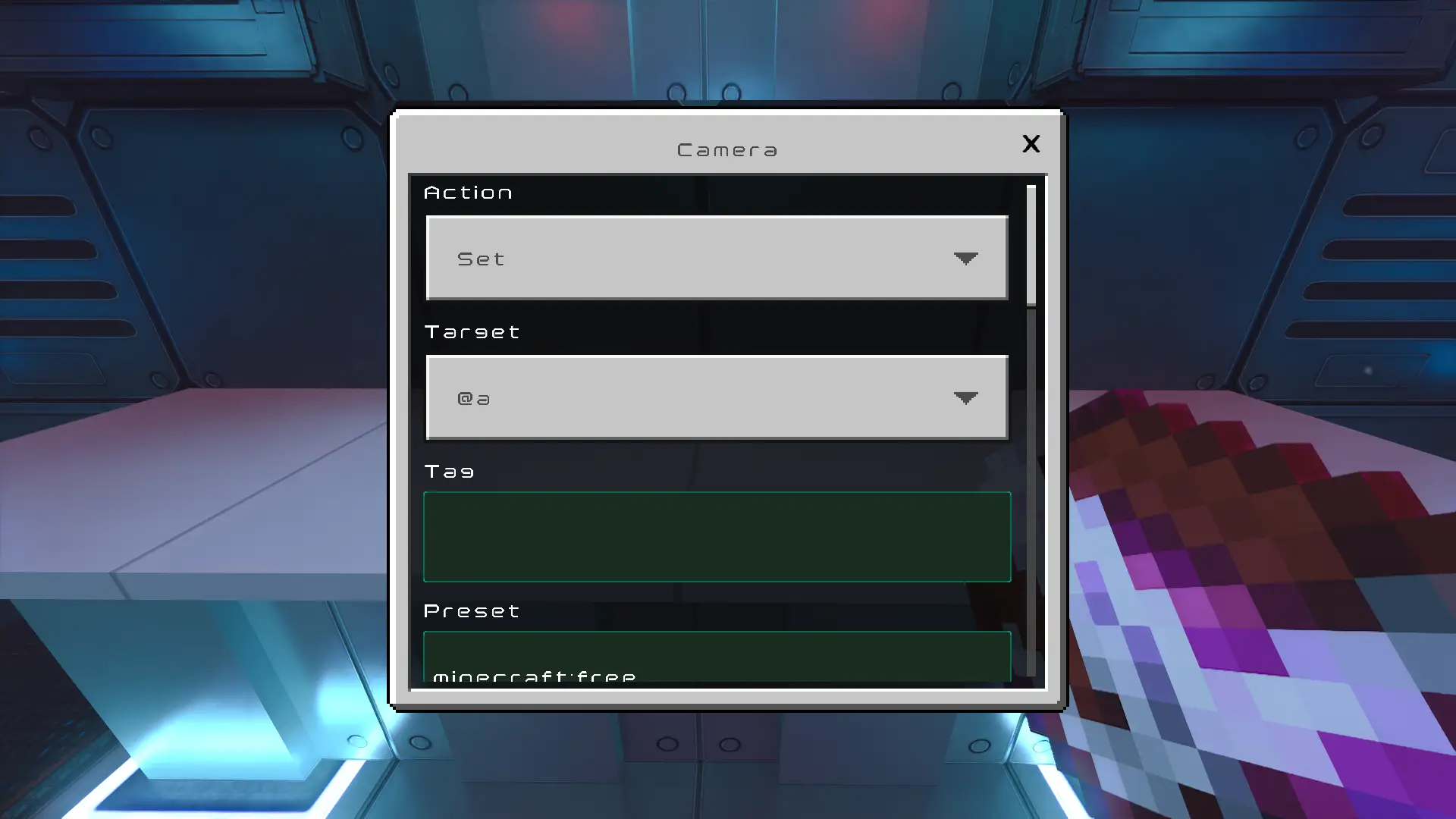
🎥 Camera
Allows you to control Minecraft's experimental camera.
- Set: Places the camera at a point. You can specify rotation (Rot) or make the camera track a mob (Track Entity).
- Fade: Smooth color transition.
- Ease: Camera movement smoothness settings.
⏳ Timer
Stops the chain execution for the specified number of seconds. Without timers, all commands execute instantly.
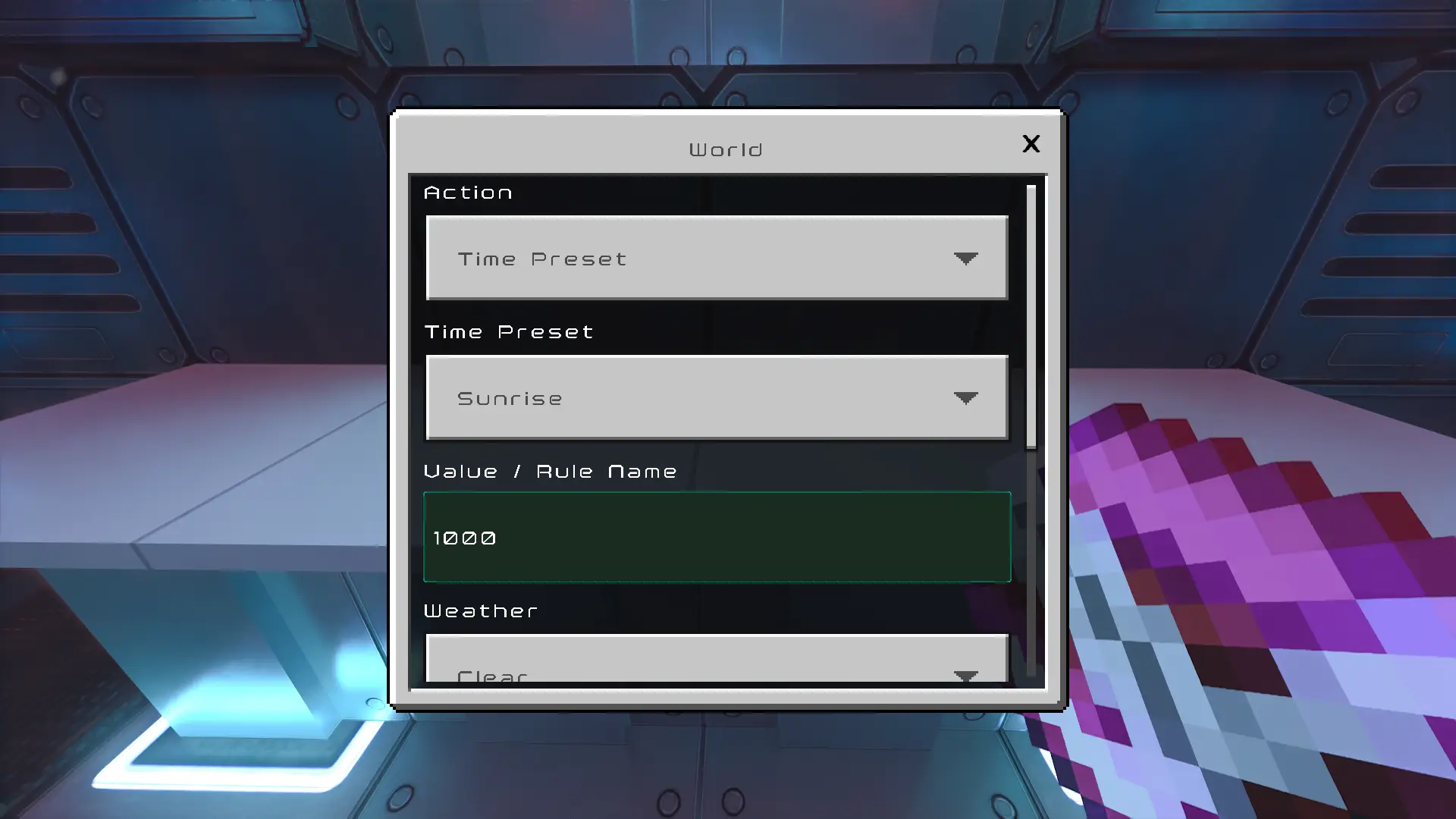
🌍 World
Convenient environment management.
- Time: Day, Night, Midnight, etc.
- Weather: Clear, Rain, Thunder.
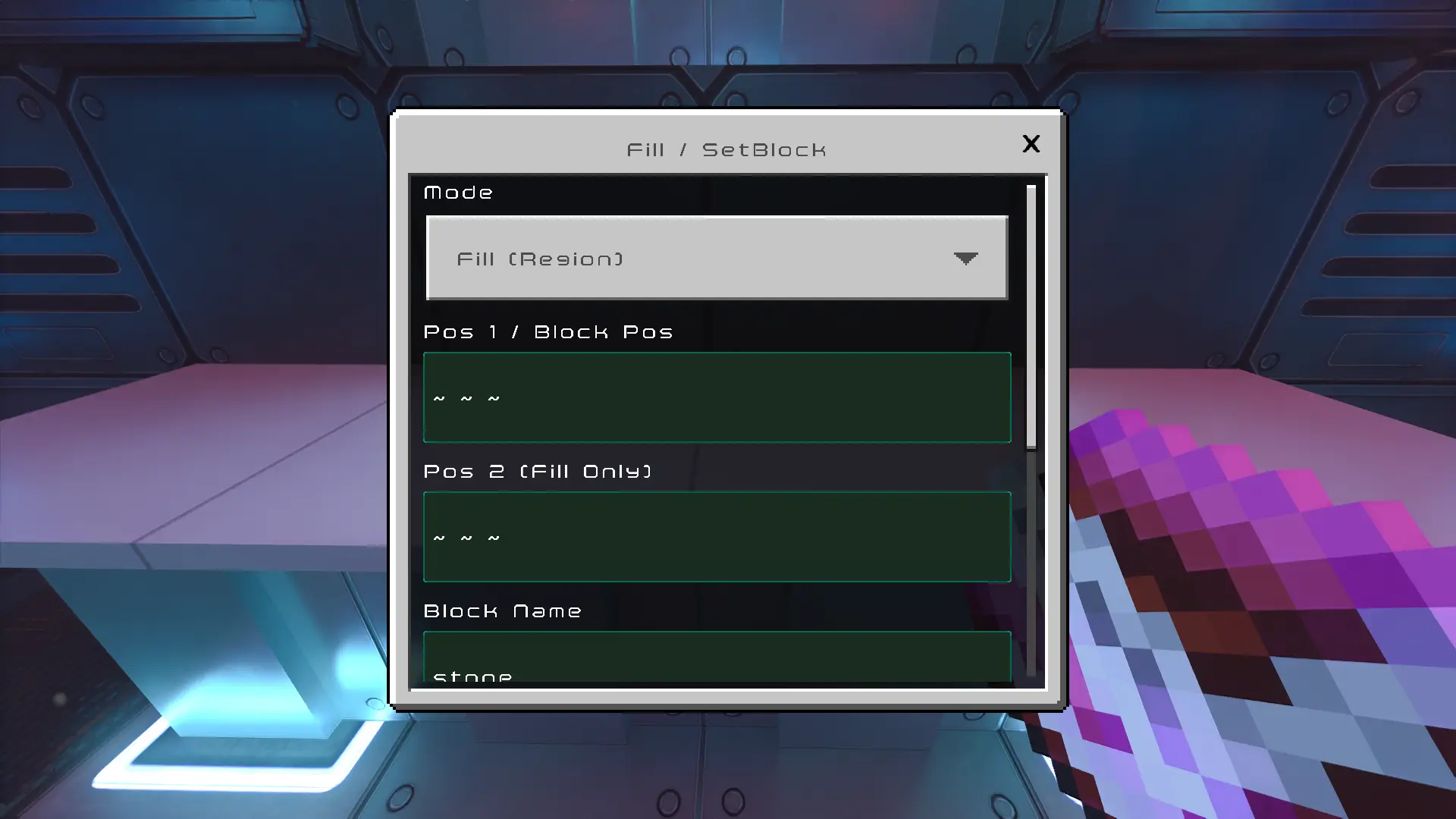
🧱 Fill / SetBlock
- Fill: Fills an area with blocks between two coordinates.
- SetBlock: Places one block at the specified coordinates.
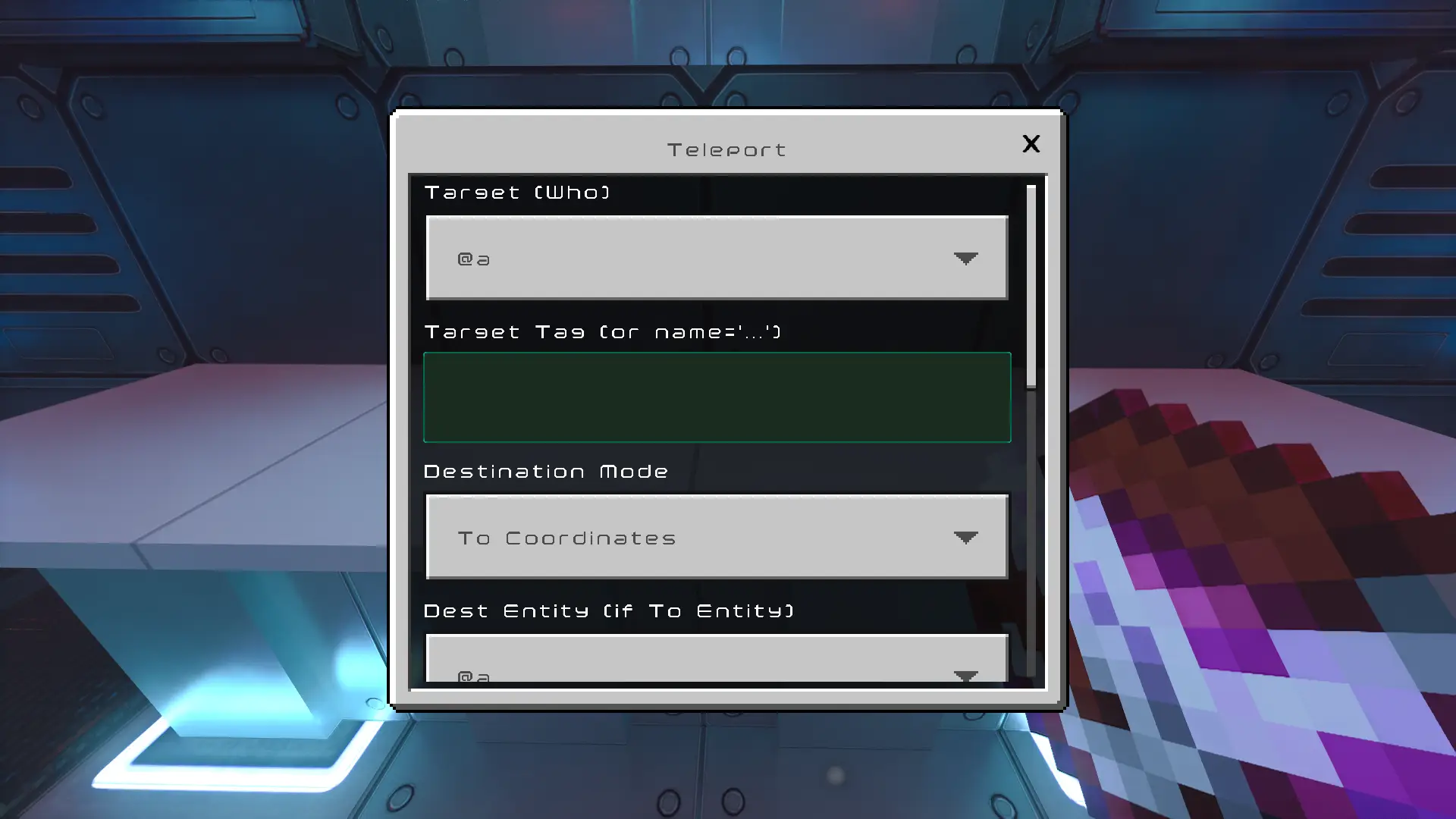
🔮 TP (Teleportation)
The new teleportation system supports two modes:
- To Coordinates: Teleport player/entity to coordinates.
- To Entity: Teleport player/entity to another entity (for example, teleport all players to admin).
💾 Saving and Running
You've created the perfect cutscene. What next?
- In the editor menu, press [S] Save.
- Come up with an ID (name in English, no spaces). For example: cutscene_1.
- You will see the message: Saved! Command: ....
How to run a scenario in the world?
- Enter the command in a Command Block: /scriptevent bp:run <YOUR_ID>
- Example: /scriptevent bp:run cutscene_1
How to emergency stop all scripts?
If you created an infinite loop or something went wrong, use the command:
- /scriptevent bp:stop
❓ Frequently asked questions
In: I press the button, but nothing happens.
аbout: Make sure that you have enabled Beta APIs in the world settings. Scripts don't work without it.
In: The mob spawns in the wrong place.
аbout: In the Summon node, it is better to use exact coordinates (numbers) rather than relative ones (~).
In: How do I delete the script?
аbout: In the main menu, click Files, enter the script ID, and select Delete.
In: The variable shows 0.
аbout: Make sure that you run the script with the Book or on behalf of the player. If you run through the command block without specifying the initiator, the script may not find the player to read health/experience.
In: How does the condition work in the node?
аbout: If you set the condition Health > 10, and the player has 5 hearts, the node will simply "remain silent" (will not execute the command), but will send a signal to the next node.
In: I can't change the steps.
аbout: Make sure that the bp_steps scoreboard is created (the mod creates it automatically when the player moves). Try moving around before the test.
Last update: February 12, 2026
What's new?
🌟 Patch 1.2 "Your values, your successes"
A global update aimed at creating variables that will help you create interesting mechanics.
🔍 1. Speed up your work (Search and Favorites)
You no longer need to scroll through long lists of nodes.
- Search: A Search button has appeared in the "Add Node" menu. Enter the node's name (for example, "Title") or its serial number in the list to quickly navigate to it.
- Favorites: The [*] Favorites button has appeared in the main menu of the editor. You can add frequently used nodes there (for example, Timer or Title) for instant access.
💾 2. Auto-Save (Anti-Crash)
Don't be afraid of game crashes anymore!
- If you accidentally closed a book, or Minecraft crashed during editing, your changes will not be lost.
- The next time you use the book, the mod will say: "Unsaved changes found" and prompt you to download them.
💎 3. System of Variables
This is the heart of Update 1.2. Scripts can now react to the player's condition.
- Where to find it: The Main Menu is the Variables button.
How to create a variable:
- Click [+] Create Variable.
- Select the type of variable:health
- food (Hunger)
- xp / level (Experience/Level)
- step_count (see steps below)
- Copy its CUID (unique ID, for example X7Z9A).
- How to use it in the text:
- You can output the value of a variable in any text field (Title, mob name, chat message).
- Just write: CUID:YOUR_CODE.
- Example: In the Title node, write: Your health: CUID:A1B2C. In the game, it will be displayed as: Your health: 20.
How to use it in Conditions (Logic):
- Now each node can be "smart". There is a Variable Condition section at the bottom of any node's settings.
- Insert the CUID of the variable.
- Select the operator:
- Specify a number for comparison.
- Example: The "Give Diamond" node with the Health condition > 10. If the player has less than 10 hearts, the node will skip its action and the diamond will not be given.
👣 4. StepCount
New mechanics that track the distance traveled.
- The script automatically counts the steps of all players.
- New Node: StepCount. Allows:Add (Add steps).
- Remove (Subtract steps, for example, purchase in steps).
- Set (Set value).
- You can enter the CUID of another variable in the quantity field!