Minecraft Bedrock Edition uses special error names when issues occur, for example, Armadillo, Creeper, Chest, Blaze, or Drowned. These errors can appear on PC, Xbox, PlayStation, Android, and iPhone. This article covers the most common Minecraft errors, explains their causes, and provides step-by-step fixes for both beginners and experienced players.
Before looking up a specific Minecraft Bedrock error code, it helps to understand which category the problem belongs to. This makes it easier to find the right solution.

Microsoft/Xbox Account Sign-In Errors
The most common errors in this category are:
- Axolotl
- Bamboo
- Blaze
- Drowned
- Guardian
- Glowstone
- Piglin
- Sand
They are usually caused by:
- Microsoft authentication issues;
- An outdated Xbox app;
- Signing into the same account on multiple devices at once;
- A temporary Xbox Live server outage;
- Incorrect account linking on PlayStation.
Server or World Connection Errors
These include:
- Armadillo
- Bat
- Creeper
- Kelp
- Goat
- Silverfish
- Snowball
- Emerald
Causes:
- Unstable internet connection;
- A Realm or server that is offline;
- Incompatible game version;
- High ping;
- A full world or server.
Storage and Game File Errors
The most well-known are:
They appear due to:
- Not enough storage space;
- Corrupted files;
- Resource pack conflicts;
- Mods and add-ons.
Multiplayer and Permissions Errors
This category includes:
- Spyglass
- Coal
- Door
- NetherNet
Most often caused by:
- Child account restrictions;
- Multiplayer being disabled;
- Xbox Privacy settings;
- PlayStation or Nintendo network restrictions;
- A strict NAT type or router blocking the connection.
What Helps with Almost Any Minecraft Bedrock Error
Before trying more advanced steps, start with the basics:
- Update Minecraft to the latest version;
- Fully restart the game;
- Reboot your device;
- Reconnect to Wi-Fi;
- Sign out of and back into your Microsoft/Xbox account;
- Disable VPN;
- Check parental controls;
- Remove problematic resource packs;
- Make sure the server is online.
In many cases, this is all you need.
Minecraft Bedrock Error Code Table
| Armadillo |
All platforms |
Disconnected from server. |
Go |
| Armor |
PC, consoles, mobile |
Skin issue. |
Go |
| Arrow |
All platforms |
Realm connection error. |
Go |
| Axolotl |
All platforms |
Account sign-in error. |
Go |
| Bamboo |
All platforms |
Authentication failure. |
Go |
| Bat |
All platforms |
Server connection dropped. |
Go |
| Blaze |
PC, Xbox, mobile |
Microsoft account issue. |
Go |
| Block |
All platforms |
Minecraft data transfer error. |
Go |
| Boat |
All platforms |
General game error. |
Go |
| Breeze |
All platforms |
World version is newer than game version. |
Go |
| Cauldron |
All platforms |
Authentication server unreachable. |
Go |
| Chain |
All platforms |
Mismatched Minecraft versions. |
Go |
| Chest |
Mobile, consoles, PC |
Not enough storage space on device. |
Go |
| Clay |
All platforms |
Server not found. |
Go |
| Coal |
Consoles |
Split-screen issue. |
Go |
| Cobblestone |
All platforms |
Account may be banned. |
Go |
| Creaking |
All platforms |
Network error while signing into Microsoft account. |
Go |
| Creeper |
All platforms |
Network error connecting to world. |
Go |
| Crossbow |
All platforms |
Error during sign-in. |
Go |
| Deep Ocean |
PC |
Minecraft Launcher sign-in error. |
Go |
| Dirt |
All platforms |
Temporary sign-in error. |
Go |
| Door |
All platforms |
Multiplayer connection error. |
Go |
| Drowned |
All platforms |
Microsoft account sign-in error. |
Go |
| Elder Guardian |
All platforms |
Authentication error. |
Go |
| Emerald |
All platforms |
World connection error. |
Go |
| End Stone |
All platforms |
Account sync issue. |
Go |
| Evoker |
All platforms |
Disconnected from server, often due to being AFK. |
Go |
| Feather |
All platforms |
Disconnected from server. |
Go |
| Fox |
All platforms |
IP address is blocked. |
Go |
| Ghast |
Nintendo Switch, consoles |
Account credentials issue. |
Go |
| Glowstone |
All platforms |
Sign-in process error. |
Go |
| Goat |
All platforms |
World is no longer available. |
Go |
| Gold |
All platforms |
Multiplayer services issue. |
Go |
| Guardian |
All platforms |
Sign-in error. |
Go |
| Haybale |
Windows, Xbox |
Xbox services issue. |
Go |
| Honeycomb |
All platforms |
Sign-in attempt error. |
Go |
| Hopper |
All platforms |
World is full. |
Go |
| Kelp |
All platforms |
Connection timed out. |
Go |
| Ladder |
All platforms |
Temporary general error. |
Go |
| Lava |
All platforms |
Sign-in error. |
Go |
| Lead |
All platforms |
General error. |
Go |
| Llama |
All platforms |
Secondary sign-in error code. |
Go |
| Mooshroom |
Windows, Xbox |
Microsoft account issue. |
Go |
| NetherNet |
All platforms |
Multiplayer connection error. |
Go |
| Observer |
All platforms |
Sign-in or network error. |
Go |
| Obsidian |
All platforms |
Sign-in error. |
Go |
| Panda |
PC, LAN |
Local server not found. |
Go |
| Piglin |
All platforms |
Sign-in error. |
Go |
| Pufferfish |
All platforms |
Sign-in error. |
Go |
| Rabbit |
All platforms |
Resource pack issue. |
Go |
| Sand |
All platforms |
Temporary sign-in failure. |
Go |
| Sandstone |
All platforms |
Sign-in error. |
Go |
| Silverfish |
All platforms |
Server does not exist or is offline. |
Go |
| Snowball |
All platforms |
Disconnected from server. |
Go |
| Spyglass |
Xbox, PlayStation, child accounts |
No multiplayer permission. |
Go |
| Squid |
All platforms |
IP address issue. |
Go |
| Sugar Cane |
PlayStation |
Wrong Microsoft/Xbox account linked. |
Go |
| Terracotta |
All platforms |
Unspecified error. |
Go |
| TNT |
All platforms |
General error. |
Go |
| Wither Rose |
PlayStation |
PlayStation Network issue. |
Go |
The Armadillo error means you've been disconnected from a server. It's usually related to your internet connection, the server itself, or a temporary connection drop.
This error can appear when joining a server, playing in a Realm, connecting to a friend's world, or during regular online play.
How to fix the Armadillo error:
- restart Minecraft;
- reboot your router;
- check the speed and stability of your internet;
- disable VPN or proxy;
- try connecting to a different server;
- if the error only appears on one server, wait it out or contact the server admin.
Contact support if the Armadillo error appears on different networks, different servers, and after reinstalling the game.
The Armor error points to a problem with your character's skin. Most often, Minecraft can't properly load the current skin, Character Creator items, or appearance elements.
How to fix:
- open your character wardrobe;
- switch to a default skin;
- disable the custom skin;
- delete the corrupted skin pack;
- restart the game.
On Android and iOS, clearing the Minecraft cache may also help.
The Arrow error appears when there's a problem connecting to a Minecraft Realm. It could be a temporary Realm outage, a network issue, or an outdated game version.
How to fix the Arrow error:
- check whether the Realm is active;
- ask the Realm owner to restart the world;
- update Minecraft;
- sign out of your Microsoft account and sign back in;
- try connecting again later.
The Axolotl error is related to signing into a Microsoft account. Players often see it when Minecraft can't complete authentication.
How to fix the Axolotl error:
- sign out of your Microsoft/Xbox account in Minecraft;
- fully close the game;
- check the date and time on your device;
- sign back into your account;
- on Windows, update the Xbox App and Gaming Services.
The Bamboo error is also related to sign-in issues. It can appear due to an authentication failure, a poor internet connection, or a temporary Microsoft services outage.
What to do:
- restart your device;
- check your internet;
- try signing in from a different network;
- sign out and back into your account;
- wait 10–15 minutes if the issue is widespread.
The Bat error means the connection to a server was lost. It's one of the typical network errors in Minecraft Bedrock.
How to fix:
- reconnect to the server;
- check your ping;
- close downloads and streams running on your device;
- reboot your router;
- check if the server is overloaded.
The Blaze error indicates a problem signing into a Microsoft account or connecting to a Realm. It sometimes appears if the same account is being used on multiple devices at the same time.
How to fix the Blaze error:
- make sure your account isn't open on another device;
- sign out of your Microsoft account;
- sign back in;
- if you're playing on a Realm, ask the owner to restart it;
- update Minecraft to the latest version.
The Block error means there's a problem with data that Minecraft is sending or receiving. This can be related to world files, add-ons, resource packs, or an unstable connection.
How to fix:
- disable all mods and add-ons;
- remove suspicious resource packs;
- restart Minecraft;
- check your internet connection;
- if the error appears in one world, make a backup and try opening a different world.
The Boat error doesn't always point to a specific cause, so it's best to start with basic troubleshooting.
How to fix:
- restart the game;
- update Minecraft;
- reboot your device;
- check your internet;
- sign out and back into your account.
The Breeze error means the world you're trying to join was created or opened in a newer version of Minecraft than the one you have installed.
How to fix the Breeze error:
- update Minecraft to the latest version;
- enable automatic updates;
- check whether you're running an older version on console or phone;
- restart your device after updating.
The Cauldron error appears when Minecraft can't reach the authentication server or the connection takes too long.
How to fix:
- check your internet;
- disable VPN;
- restart your router;
- try a different network;
- sign back into your Microsoft account.
The Chain error means you and the server or other player are running different versions of Minecraft Bedrock.
How to fix:
- update Minecraft on all devices;
- ask your friend to update the game as well;
- check whether a Preview or Beta version is installed;
- restart the game after updating.
The Chest error code means the device doesn't have enough free storage for Minecraft to run properly.
How to fix the Chest error:
- delete unused apps and files;
- free up at least a few gigabytes of storage;
- delete old worlds you no longer need;
- clear the Minecraft cache;
- restart your device.
On Android, iOS, and Nintendo Switch, the Chest error is especially common when storage is almost completely full.
The Clay error means Minecraft can't find the server.
How to fix:
- verify the IP address is correct;
- make sure the server is running;
- check the server port;
- try connecting again later;
- contact the server owner.
The Coal error is related to split-screen play. It most commonly occurs on consoles.
How to fix:
- make sure the device supports split-screen;
- verify that both players are signed into their accounts;
- check multiplayer permissions;
- update the console's system software;
- restart Minecraft.
The Cobblestone error may indicate that the account has a ban or restriction applied.
How to tell if a Minecraft account is banned:
- multiplayer is unavailable across multiple devices;
- unable to join any servers;
- the restriction persists even after switching networks;
- there are policy violation notices in the account.
What to do:
- check your Microsoft account notifications;
- determine whether this is a temporary restriction;
- if the ban was issued in error, submit an appeal;
- avoid using third-party cheats and suspicious clients.
The Creaking error indicates a network problem during the Microsoft account sign-in process.
How to fix:
- check your internet connection;
- disable VPN;
- try a different network;
- restart Minecraft;
- sign back into your account.
The Creeper error means Minecraft couldn't connect to a world due to a network problem. This is one of the most common player searches: "how to fix Creeper error Minecraft."
How to fix the Creeper error:
- reboot your router;
- disable VPN;
- check the NAT type on Xbox or PlayStation;
- allow Minecraft through the Windows firewall;
- try connecting via mobile data;
- ask the host to restart the world.
The Crossbow error appears during account sign-in. It's usually a temporary authentication failure.
How to fix:
- close Minecraft;
- restart your device;
- sign out of your Microsoft account;
- sign back in;
- check your internet.
The Deep Ocean error most commonly occurs when signing in through the Minecraft Launcher on PC.
How to fix:
- update the Minecraft Launcher;
- update the Xbox App;
- check Gaming Services;
- sign out of the Microsoft Store and sign back in;
- restart your PC.
The Dirt error is linked to the sign-in process and is often temporary.
How to fix:
- wait a few minutes;
- restart the game;
- check your internet;
- sign back into your account;
- update Minecraft.
The Door error indicates a multiplayer connection problem.
How to fix:
- enable multiplayer in your account settings;
- check parental controls;
- check your NAT type;
- allow Minecraft in your network settings;
- reboot your router.
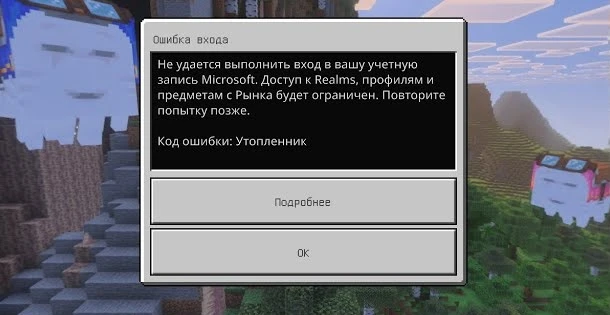
The Drowned error means there's a Microsoft account sign-in error in Minecraft.
How to fix the Drowned error:
- sign out of your account in Minecraft;
- close the game;
- verify the date and time are correct on your device;
- update the Xbox App on Windows;
- sign back into your account.
The Elder Guardian error is related to an account sign-in problem.
How to fix:
- restart Minecraft;
- sign out of and back into your Microsoft account;
- try a different network;
- clear the app cache;
- update the game.
The Emerald error means Minecraft failed to connect to a world.
How to fix:
- ask the host to restart the world;
- make sure all players are on the same game version;
- restart Minecraft;
- check your internet;
- try connecting again later.
The End Stone error indicates an account sync problem between devices.
How to fix:
- make sure your account isn't being used on multiple devices at once;
- sign out on any extra devices;
- restart Minecraft;
- sign back into your account;
- check your internet.
The Evoker error means you were disconnected from a server. This sometimes happens if the player has been idle for too long.
How to fix:
- reconnect to the server;
- avoid going AFK for too long;
- check the server's rules;
- if you can't get back in, restart the game and your network.
The Feather error means you were disconnected from a server.
How to fix:
- restart Minecraft;
- check your Wi-Fi;
- reboot your router;
- try a different server;
- disable VPN.
The Fox error means the IP address you entered is blocked or unreachable.
How to fix:
- verify the IP address is correct;
- confirm the server exists;
- avoid using suspicious servers;
- contact the server owner;
- try a different address.
The Ghast error is related to account credentials.
How to fix:
- sign out of your Minecraft account;
- restart the game;
- sign back in;
- on Nintendo Switch, clear account data in the profile settings;
- check your internet.
The Glowstone error occurs during the account sign-in process.
How to fix:
- sign out of your Microsoft account;
- sign back in;
- check Xbox services;
- disable VPN;
- restart your device.
The Goat error means the world is no longer available, for example, the host has left the game or closed the world.
How to fix:
- check whether the host is still in the game;
- ask your friend to reopen the world;
- try reconnecting;
- check your internet;
- if it's a Realm, check its status.
The Gold error indicates a problem connecting to multiplayer services.
How to fix:
- check your Xbox Live connection;
- restart Minecraft;
- update the game;
- verify multiplayer permissions;
- try a different network.
The Guardian error means there's a problem signing into a Microsoft account in Minecraft.
How to fix the Guardian error:
- sign out of your account;
- clear saved sign-in data if that option is available;
- restart Minecraft;
- sign back in;
- check your internet and device date/time.
The Haybale error is related to connecting to Xbox services and occurs most often on Windows.
How to fix:
- update the Xbox App;
- update Gaming Services;
- restart your PC;
- sign into the Microsoft Store with the same account;
- update the Minecraft Launcher.
The Honeycomb error indicates a problem during a sign-in attempt.
How to fix:
- restart Minecraft;
- check your internet;
- sign out and back into your account;
- try a different network;
- update the game.
The Hopper error means the world you're trying to join is full.
How to fix:
- wait for a slot to open up;
- ask the admin to increase the player limit;
- try connecting again later;
- if it's a friend's world, ask them to check the player settings.
The Kelp error means the connection timed out.
How to fix:
- check your internet;
- make sure the server or host is online;
- reboot your router;
- close background downloads;
- try connecting via a different network.
The Ladder error is a temporary general error.
How to fix:
- restart the game;
- reboot your device;
- update Minecraft;
- check your internet;
- if the error keeps recurring, reinstall the game after backing up your worlds.
The Lava error is related to the sign-in process and is usually temporary.
How to fix:
- wait a few minutes;
- restart Minecraft;
- sign back into your account;
- check your internet;
- update the game.
The Lead error indicates a general Minecraft failure.
How to fix:
- restart the game;
- reboot your device;
- check for updates;
- clear the cache;
- try signing in again later.
The Llama error usually appears alongside another named error code. This means the root cause should be found by looking up the second error code.
How to fix:
- note which other code appears next to Llama;
- find that code in the table above;
- follow the steps for the second code;
- restart Minecraft;
- sign back into your account.
The Mooshroom error points to a problem with the Microsoft account or game services on Windows.
How to fix:
- update the Xbox App;
- check Gaming Services;
- sign out of and back into the Microsoft Store;
- restart your PC;
- sign back into Minecraft.
The NetherNet error indicates a multiplayer connection failure.
How to fix:
- check your NAT type;
- enable multiplayer in your account settings;
- reboot your router;
- disable VPN;
- check parental controls.
The Observer error is related to sign-in or network connectivity.
How to fix:
- check your internet;
- disable VPN;
- restart Minecraft;
- sign back into your account;
- update the game.
The Obsidian error appears during account sign-in.
How to fix:
- restart Minecraft;
- sign out of your account;
- sign back in;
- clear the game cache;
- check your internet.
The Panda error means a local LAN server was not found.
How to fix:
- make sure all devices are connected to the same network;
- verify the world is open to LAN;
- disable the firewall or add Minecraft as an exception;
- enable network discovery in Windows;
- restart the game on both devices.
The Piglin error is related to authentication.
How to fix:
- sign out of your Microsoft account;
- sign back in;
- check Xbox Live;
- update Minecraft;
- restart your device.
The Pufferfish error indicates an account sign-in problem.
How to fix:
- switch to a different internet connection;
- restart the game;
- sign back into your account;
- clear the Minecraft cache;
- check for updates.
The Rabbit error indicates a problem with a resource pack, mod, or add-on.
How to fix:
- disable all add-ons;
- remove the most recently installed resource pack;
- check whether the world opens without any packs;
- restart Minecraft;
- only download add-ons from trusted sources.
The Sand error usually indicates a temporary authentication failure.
How to fix:
- wait a few minutes;
- restart Minecraft;
- check your internet;
- sign back into your account;
- update the game.
The Sandstone error is related to account sign-in.
How to fix:
- sign in again;
- update the Xbox app;
- check your internet;
- restart your device;
- try a different network.
The Silverfish error means the server may not exist, may be offline, or may be closed to connections.
How to fix:
- make sure the server is running;
- verify the IP address and port;
- check multiplayer permissions;
- contact the server owner;
- try connecting again later.
The Snowball error means you were disconnected from a server.
How to fix:
- reconnect;
- check the Realm or server;
- update Minecraft;
- restart your internet;
- try connecting via a different network.
The Spyglass error indicates a permissions problem. Most often, online play is blocked in the account settings.
How to fix the Spyglass error:
- open Xbox Privacy settings;
- enable multiplayer;
- check parental controls;
- make sure the child account has access to online play;
- restart Minecraft.
The Squid error is related to an IP address or network connection issue.
How to fix:
- restart your router;
- disable VPN;
- try a different network;
- check whether the server is blocked;
- contact your ISP if the issue keeps recurring.
The Sugar Cane error typically appears on PlayStation and means the wrong Microsoft/Xbox account is linked to the current PSN account.
How to fix:
- check which Microsoft account is linked to PlayStation;
- sign out of the old account;
- sign into the correct account;
- clear old sign-in data if that option is available;
- restart the console.
The Terracotta error indicates an unspecified Minecraft failure. The cause can vary: internet, account, game version, or a temporary service error.
How to fix:
- restart Minecraft;
- update the game;
- clear the cache;
- restart your device;
- sign back into your account.
The TNT error doesn't always point to a specific cause.
How to fix:
- restart the game;
- update your device's operating system;
- check your internet;
- disable VPN;
- try again later.
The Wither Rose error is related to the PlayStation Network account.
How to fix:
- restart the console;
- sign back into PSN;
- check the PlayStation internet connection;
- verify your PlayStation Plus subscription if it's required for online play;
- try connecting again later.
Frequently Asked Questions
The usual cause is an unstable internet connection, high ping, or an issue on the server's end. Check your Wi-Fi, reboot your router, and try joining a different server.
Free up at least a few gigabytes of storage. Minecraft Bedrock uses free space not only for installation but also for cache, worlds, resource packs, and save data.
If the Cobblestone error appears and multiplayer is unavailable across all devices and servers, the account may be restricted. Check your Microsoft account notifications and profile restrictions.
The Guardian error is related to signing into the Microsoft account in Minecraft. Signing out, restarting the game, and signing back in usually resolves it.
Try rebooting your device or reinstalling the game, make sure to back up your worlds first.
The reasons can vary: a strict NAT type, mismatched game versions, multiplayer being disabled, a full world, the host being offline, or a temporary network error.
Try changing your DNS, disabling VPN, connecting via mobile data, allowing Minecraft through the firewall, and checking your NAT settings.
Most Minecraft Bedrock errors are related to internet connectivity, Microsoft/Xbox authentication, online play settings, or game version mismatches. In most cases the problem can be resolved in just a few minutes: update Minecraft, restart your device, check your network, or sign back into your account.
If you didn't find your error here, leave the error code in the comments and we'll help you fix it.